Some variables are better written or made per row than read from a column: a short headline from a product's specs, a scene behind each store's city, a clean product cut-out. Bind those variables to AI. The values are made when the set runs, once per brand, and each new one is a line in the quote.
Availability: personalized creative sets are rolling out to teams gradually. If you do not see Personalize with data in the editor toolbar, your team does not have it yet. Contact support to ask for access.
Bind a variable to AI
In the editor's Personalize with data panel, select a variable and change its Source. See Personalize a static ad for the panel itself.
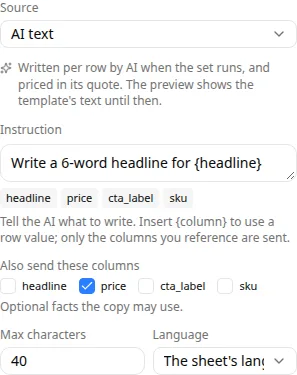
AI text
For text variables:
| Field | What to enter |
|---|---|
| Instruction | What to write. Insert {column} to use a row value, such as Write a 6-word headline for the {year} {model}. Only the columns you reference are sent |
| Also send these columns | Optional extra facts the copy may use |
| Max characters | Leave empty to fit the slot |
| Language | The sheet's language, or a specific language |
AI image
For image variables, pick an Action:
| Action | What it does | Fields |
|---|---|---|
| Generate an image | Makes a new image per row | Prompt (insert {column}, such as a {city} street at golden hour), an optional Row image as the subject, Match the look of the template's image, and Model |
| Edit the row's image | Changes the row's own image, which stays the subject | Row image, a short Prompt describing the change, Match the look of the template's image, Model |
| Remove the background | Cuts out the row's image, such as a product photo | Row image |
Model defaults to Auto (best model for each aspect), which picks a model per slot shape. Each image is priced at its model's rate.
Keep the subject clear of text (on for new image bindings) tells the model where the template's copy covers the slot at each size, such as "keep the subject in the upper 60%", so the car or product isn't hidden behind the headline. It applies to static ads, where the layout gives each text's position. Rich media lays text out in the browser, so the option has no effect there yet. Turning it on or off makes new images on the next run. Bindings saved before this option existed keep it off, so their images and prices don't change.
The row image must be a JPEG, PNG, or WebP column; it is downloaded and stored when the set is prepared. Remove the background takes JPEG or PNG only — WebP photos are skipped with a reason.
Export fields (landing_url, ad_name) cannot be written by AI.
Framed around the subject
When you bind an image layer to Generate an image or Edit the row's image, its Framing focal point is set to Auto, unless the layer already has a framing. When each image is made, its main subject is found once and stored with the image. In a layered ad, each size is then cropped so the subject sits in the part of the box that the size's text leaves clear. If needed, the image is zoomed in slightly, up to 1.5×. In a rich media ad, which resizes, the crop is centred on the subject. Each image costs 10 credits more, and that is included in the quote. If no clear subject is found, the image stays centred. Auto applies to images that Fill their box; an image set to Fit, and a size that is just one full-bleed image with no text, are left as they are and cost nothing extra. Turn Auto off, or pick a point on the image, to choose the focal point yourself. Layers that already have images and sets you've already made don't change. Turning Auto on for an image variable that already has AI images makes new images the next time the set runs, because each image is made with its subject detection.
What the preview shows
The canvas, row stepper, and preview grid show the AI values your brand already has for each row: the copy or image a set made with the same instruction or prompt, the same cells, every size of the template, no campaign, and the Auto image model. The panel marks each AI variable Generated or Not generated yet. A value that isn't made yet keeps the template's text or image, and the bar says how many are pending. Showing values that already exist is free.
A value a set regenerated or replaced with your own image isn't shown here: a new set from the template starts from the original value.
Generate this row
To see the AI values of one row before you make a set, step to the row and choose Generate this row under the canvas (or the rich media stage).
- The confirm dialog says what will be made and what it costs, for example 2 AI values for this row: headline, background and Costs 42 credits. The price is the one a set's quote charges for the same values.
- Choose Generate · 42 credits. Your credits are checked first, the same way as for a set. If you don't have enough, nothing is made.
- The button shows Generating…. When it's done, the canvas and the preview grid show the new values.
Each value is charged once, when it is made. A value that fails isn't charged, and the panel names it so you can try again. A set you make later from the same template and bindings, with every size, no campaign, and the Auto image model, reuses these values at no extra cost: its quote counts them as already made.
The button is unavailable when no variable is bound to AI, when every AI value of the row is already generated, or while another row is generating. Only the row on screen is made. To make more rows at once, review a set and use Preview 3 rows first.
Made once, reused
Each AI value is identified by exactly what is sent to the AI: the model, the prompt or instruction, the cells it reads, any reference image, and the size or shape. The same request is made once for the brand and then reused:
- by other rows whose request is identical — ten rows with the same city share one city image
- by later sets and re-runs of the same template
- by other templates that make the same request
Values the brand already has cost nothing. A cut-out is made once per photo.
On the review page, AI work, after the cache and reuse lists each AI variable, such as 12 images for 924 ads (3 aspects) and 4 already made, and Reusing values saves … credits. when reuse lowers the cost. New values appear in the quote as AI images, Background cut-outs, and AI copy.
Your plan limits how many new AI images one set can make. Cut-outs and reused images do not count.
Choose the image model for a template edit
When the set edits your template's image for each row, both the plan card and the quote on the review page show Image model:
| Option | What it does |
|---|---|
| Auto (recommended) | Picks a model for each size. This is the default. |
| Nano Banana 2 | Best text accuracy. |
| Seedream 5 Pro | Draws the exact pixel size. |
Each option shows its price per ad. On the plan card it also shows the total for the plan. Some models can't make some sizes, for example a very wide banner. For those sizes the option uses Auto's model and says so. For example, Seedream 5 Pro shows 728×90: made on Nano Banana 2 instead (this model can’t make it).
If you change the model on the review page, the set prepares a new quote. Values already made with another model are not reused. If you previewed rows first, those rows are made and charged again with the new model. A re-run uses the same model as the set it re-runs.
Preview 3 rows first
Before you approve a large set, check what the AI makes. On the review page, choose Preview 3 rows first · up to … credits.
- This is paid: it makes the AI values of the first three rows.
- The set shows Previewing while they are made: Generating the preview values. You can approve once they're ready.
- The Preview values card then shows each value with its row, or the reason it failed.
- The full run reuses them at no extra cost. The quote lists them as Already charged (preview).
Not happy with them? Change the instruction or prompt in the editor's Personalize with data panel, save the mapping, and choose Refresh quote — or Discard the set and start again.
Regenerate a value
Once the set has finished, you can ask for a new version of one AI value.
- Open the ad's … menu and choose Regenerate headline… (the variable's name).
- Under Regenerate for, choose one of these:
- Just this image (…), the default. Only the ad you opened, at that one size, gets the new value. Other ads that use the same value keep it.
- This row (…): every size that uses it.
- Every row of this set that shares this value.
- An AI image also takes Instructions, and the Edit with instructions button shows its own cost:
- A generated image (an AI image made from a prompt, or an edit of a row's photo) takes instructions for any of the three choices, for example Move the car higher, keep the bottom clear. Each image is edited as it is now, at its own size, and the ad's text stays as you designed it. It costs at most what a regenerate does. Very wide or very tall images (such as a 3:1 banner) don't take instructions yet.
- An image made by editing your template takes instructions for Just this image only, for example Move the price above the product. The change is planned, made and checked, and every text stays exactly as it is. It has its own price.
- Read the cost, for example 165 credits for 1 ad. It covers the new value plus a render for each ad that needs one. An ad that is the image itself needs no render. Your credits are checked first.
- Choose Regenerate, or type your instructions and choose Edit with instructions.
The current value stays as it is for every other set. Each value can be regenerated, with or without instructions, up to five times. Regenerations count toward your plan's per-set limits. When you give the same instructions for the same image again, for another ad of the set or in another set of the brand, the edit already made is reused for free. Only the ads' renders are charged, and the cost shown says so.
Pin your own image
When the AI image is not right, use your own:
- Open the ad's … menu and choose Fix a value.
- Pick the image variable and choose Upload an image (JPEG, PNG, or WebP, up to 20 MB) — or paste a public https link.
- You see Image pinned. Re-run the set to use it.
- Choose Re-run in the set header.
When an AI value fails
A failed AI value shows its reason on the preview card or the ad:
| Reason | What to do |
|---|---|
| The AI provider refused this request. | Reword the instruction or prompt. A refused request is never charged |
| The AI provider was unavailable. / The AI value couldn't be made. | Retry the failed ads |
| The reference image is in a format this AI step can't read. | Use a JPEG or PNG row image |
| Generating this value kept failing. | Change the prompt, or pin your own image |
Ads that use a failed value fail with The AI value this ad uses couldn't be made. Use Retry … failed ads in the set header.
Some rows are skipped at review instead:
- every column it's made from is empty in this row — the instruction or prompt only uses empty cells
- a row image too small, too large, or too narrow for the model — the message gives the allowed size range
- a model sets cannot run — pick Auto or another model in the mapping