In a personalized set, each row's values replace the ad's own copy and images. A row's text is often longer than the copy the ad was designed around — a long product name, a price with a prefix, a legal line. This page shows how to keep those values inside their box, and how to find the rows that won't fit before you run the set. It covers rich media ads and layered static ads: the ideas and most controls are the same, and Differences between formats lists where they part.
Availability: personalized creative sets are rolling out to teams gradually. If you do not see Personalize with data on the ad's page or in the layer editor's toolbar, your team does not have it yet. Contact support to ask for access.
Why long values break a layout
Most ads are built so that a box grows with its text. A headline that is twice as long wraps onto more lines, its box gets taller, and the button below it moves down — or off the ad. An image of a different shape can stretch its box the same way.
The fix is to give each element that changes per row a fixed box and tell it how to fit its content into that box. The box stays the same size; the content adapts.
Where to find Fit
- Rich media: select an element in the Assets tab. Fit is in its properties.
- Layered static ad: select a layer that has a Template variable in the Layers panel. Fit is right under the variable.
Lock the box size
A box is locked at the size it has in the preview. Choose Lock box size under Fit, and do it again after you resize or move an element. Unlock lets the box grow with its content again.
Fit options
| Element | Option | What happens |
|---|---|---|
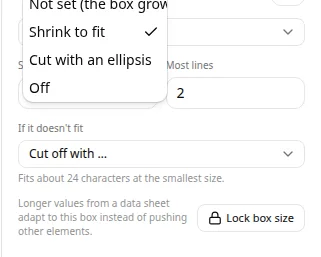
| Text | Shrink to fit | The text gets smaller until it fits the box, down to Smallest size. Most lines caps how many lines it may wrap onto. |
| Text | Cut with an ellipsis | The text keeps its size and ends with "…" where the box runs out. |
| Button | Shrink to fit | The label gets smaller, down to Smallest size. |
| Any | Off | Nothing is fitted. The box can grow with its content. |
Rich media images also have Fill the box (crop) and Fit inside the box, with a Focal point that picks which part stays in view.
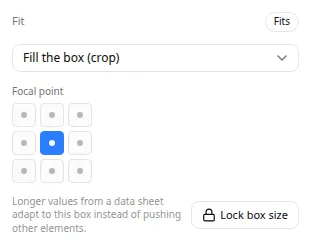
The badge next to Fit shows how the element came out in the preview: Fits, Shrunk to fit, Cut short, or Doesn't fit: flagged. In a layered static ad it shows while a row is on the canvas.
If it doesn't fit
Shrinking stops at the smallest size. If it doesn't fit decides what happens to text that is still too long:
- Cut off with … — the text is cut off with an ellipsis. Good for headlines and descriptions, where a shortened line is acceptable.
- Flag for review — the ad goes to Needs review on the set page, so you can fix or accept it before it ships. Use it for copy that must appear in full: prices, offers, discounts, promo codes, and legal lines.
Price, offer, and legal copy is recognised from the element's name and variable, and from the column's name and values — for example sale_price, promo_code, Disclaimer, or a column of values like $19.99.
Settle flagged ads as any ad that needs review — Accept it, Fix a value, or Exclude it. See Review ads that need a look. Ads that need review are charged like ready ones, and are left out of exports unless you include them.
How much text fits
Under If it doesn't fit, Fit shows about how many characters the box holds at its smallest size — for example Fits about 40 characters at the smallest size. It is measured with the element's real font, box, and line limit, using wide letters, so it errs on the side of warning. It is measured again when you choose Lock box size or change the fit.
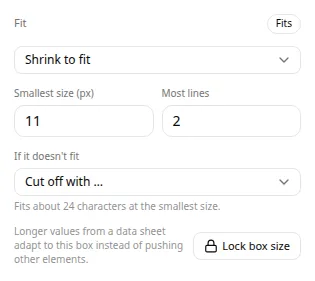
If it says Not measured yet, choose Lock box size.
The count is an estimate: wide letters take more room than narrow ones. The preview and Longest values show the real outcome.
What binding sets
When you bind text or a button to a column and it has no fit yet, binding starts it on Shrink to fit. If it doesn't fit is Flag for review for prices, offers, discounts, promos, and legal copy, and Cut off with … for everything else. Change any of it under Fit.
Check before you run
Personalize with data checks the whole sheet, not only the rows you have stepped through.
Length warnings
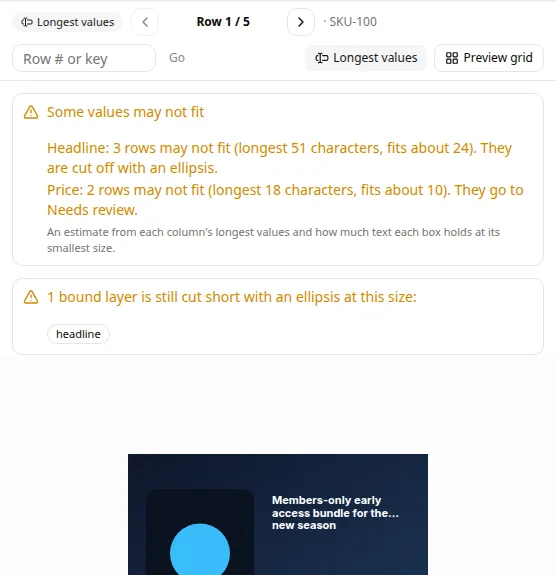
A warning lists each bound text or button whose column holds values longer than its box holds — for example Headline: 3 rows may not fit (longest 58 characters, fits about 40). They are cut off with an ellipsis. For a Flag for review element it says the rows go to Needs review instead. The check needs the box's character count, so lock and measure the box first.
Longest values
Choose Longest values to preview the longest value of each column in the sheet — together, in one made-up row. A summary lists any bound element that is still cut short, or that doesn't fit and will go to Needs review, at the size you are viewing. Switch sizes to check each one.
Differences between formats
Rich media
- One responsive document is shown at every size, so the same box is smaller in a 320×50 banner than in a 300×600 one. An ad made for several sizes locks its box as a share of the ad's size; an ad made for one size locks it in pixels.
- The character count is measured at every size the ad is made for, and the smallest is kept. It is measured again when you change the ad's sizes.
- A button label shrinks on one line.
- Binding also locks the box, measures it, and sets a smallest size of 60% of the text's size, never below 9 px. Images get Fill the box (crop) and logos Fit inside the box, from the center.
- When the set runs, each row's value for a Flag for review element is compared with the character count. A longer value marks the bundle Needs review, with the reason "price" may be too long for its box, so it was flagged instead of cut off. If a row that was not flagged still doesn't fit, its text is cut with an ellipsis as a last resort, so the cut is visible rather than silent.
Layered static ads
- Prices, offers, and legal copy are never cut off, whatever their fit says: they shrink to fit, then are flagged for review. With a mapping loaded, a variable bound to a price, offer, or legal column counts too.
- Each size is its own layout. Lock and measure a layer in each size you make: switch sizes in the editor and repeat. The length warnings list layers that are not measured in some sizes, so long values there are not checked.
- The preview renders every size with the same renderer as the set. The badges are the real outcome, not an estimate: the Text overflow badge under the canvas and an amber ring in the size strip mark the sizes where copy doesn't fit even at its smallest size. With Longest values on, they show how the longest row comes out in every size.
- Binding does not lock the box; choose Lock box size to measure it, or Measure on a box that is already locked. Unlock keeps the box's width, which sets where the text wraps.
- A count marked Out of date was measured before the box or its type changed. Choose Re-measure: until you do, the length warnings don't trust it.
- Without a Smallest size, text may shrink to half its size, never below 10 px.
- A text or button layer can be fitted wherever it sits — at the top level, inside a group, or on a backplate group — as long as its font size is in px. Select a group in the Layers panel and open the child under Children — a group inside a group lists its own Children — to find its Fit.
- Copy inside a group is fitted to its own box and to the group's: if the group still doesn't fit, its copy shrinks together. When the group has a fixed size and the copy has no locked box of its own, Fit shows Box set by group, and Measure counts how much text fits in the room the group leaves the copy, with the group's other elements at their current size. Resizing the group marks the count Out of date. You can also lock the copy's own box. Locking fixes the copy's width and height at its size in the preview, so the group may lay out a little differently around it; check the preview after locking. A group that is scaled or skewed can't have its copy's box locked: remove the transform first.
- Copy inside a split screen can't be fitted: Fit says why, and ads where that copy is bound always need review.
- Copy on a backplate (a button) can't be cut off with an ellipsis. It shrinks to fit, then is flagged for review.
- When the set runs, every ad is checked as it renders. An ad whose text doesn't fit goes to Needs review, with the reason "headline" doesn't fit its box, even at its smallest size. Text cut off with Cut off with … still ships, as long as enough of it stays readable; a cut that leaves too little to read is flagged instead.
Tips
- Write short copy for the sheet. A headline under 30 characters fits most sizes.
- Check Longest values and the length warnings before you choose Review set.
- Give price, offer, and legal elements Flag for review, so they are never shipped cut short.
- Set Most lines on headlines, so a long value shrinks instead of wrapping into the copy below.
- Leave room: a smaller Smallest size or a larger box fits more text, but keep text readable.
- Fix the sheet when one row is far longer than the rest. It is often a data error.