After you approve a set, its page follows the ads as they render. From there you review ads that need a look, fix values, save or edit individual ads, re-run with changes, and export.
Availability: personalized creative sets are rolling out to teams gradually. If you do not see Sets in the brand sidebar, your team does not have them yet. Contact support to ask for access.
Find your sets
Open Sets in the brand sidebar. You can also reach it from the Sets button on the brand's Static Ads page, or from a data sheet's Used by card.
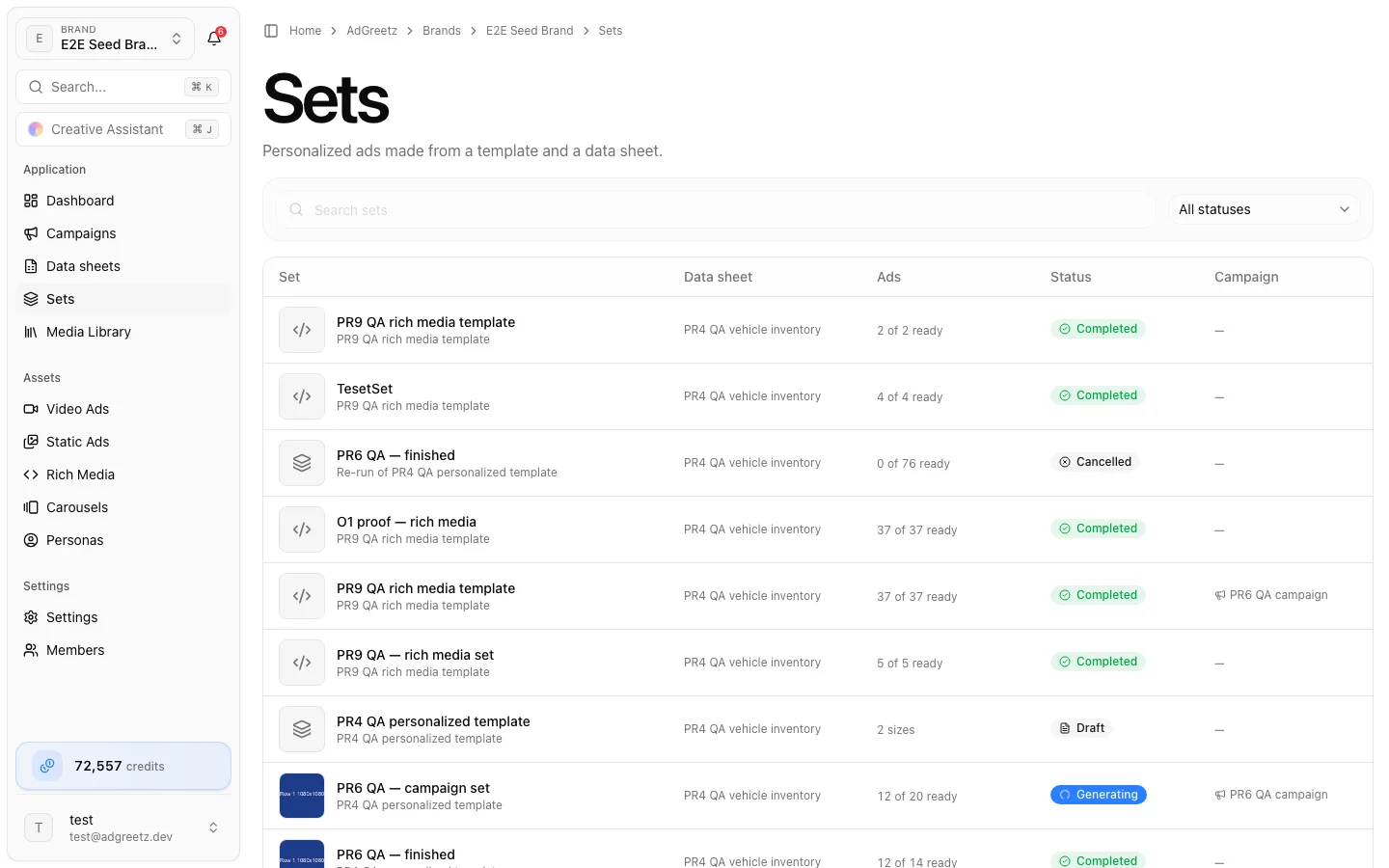
| Column | Shows |
|---|---|
| Set | The set's name (or its template's), a thumbnail, and Re-run of … for a re-run |
| Data sheet | The sheet it was made from |
| Ads | Progress, such as 112 of 120 ready, or the size count before approval |
| Status | The set's status |
| Campaign | The campaign it belongs to, if any |
| Created | When it was created |
Search by name, or filter with All statuses.
With no sets yet, the page explains how to start one — open a layered static ad or a rich media ad, choose Personalize with data, pick a sheet, then Review set — with Go to Static Ads and Go to Rich Media.
Set statuses
| Status | Meaning |
|---|---|
| Draft | Created, not prepared yet |
| Preparing | Checking rows, fetching images, and pricing |
| Ready to approve | Quoted and waiting for your approval |
| Previewing | Making the AI values of the first rows (Preview 3 rows first) |
| Queued | Approved, about to start |
| Generating | Ads are rendering |
| Paused | Stopped for a reason shown on the page — see below |
| Completed | Every ad finished |
| Needs review | Finished, and some ads need a look |
| Partly failed | Finished, and some ads failed |
| Failed | Finished, and no ad could be made |
| Cancelled | You cancelled what was left |
Follow progress
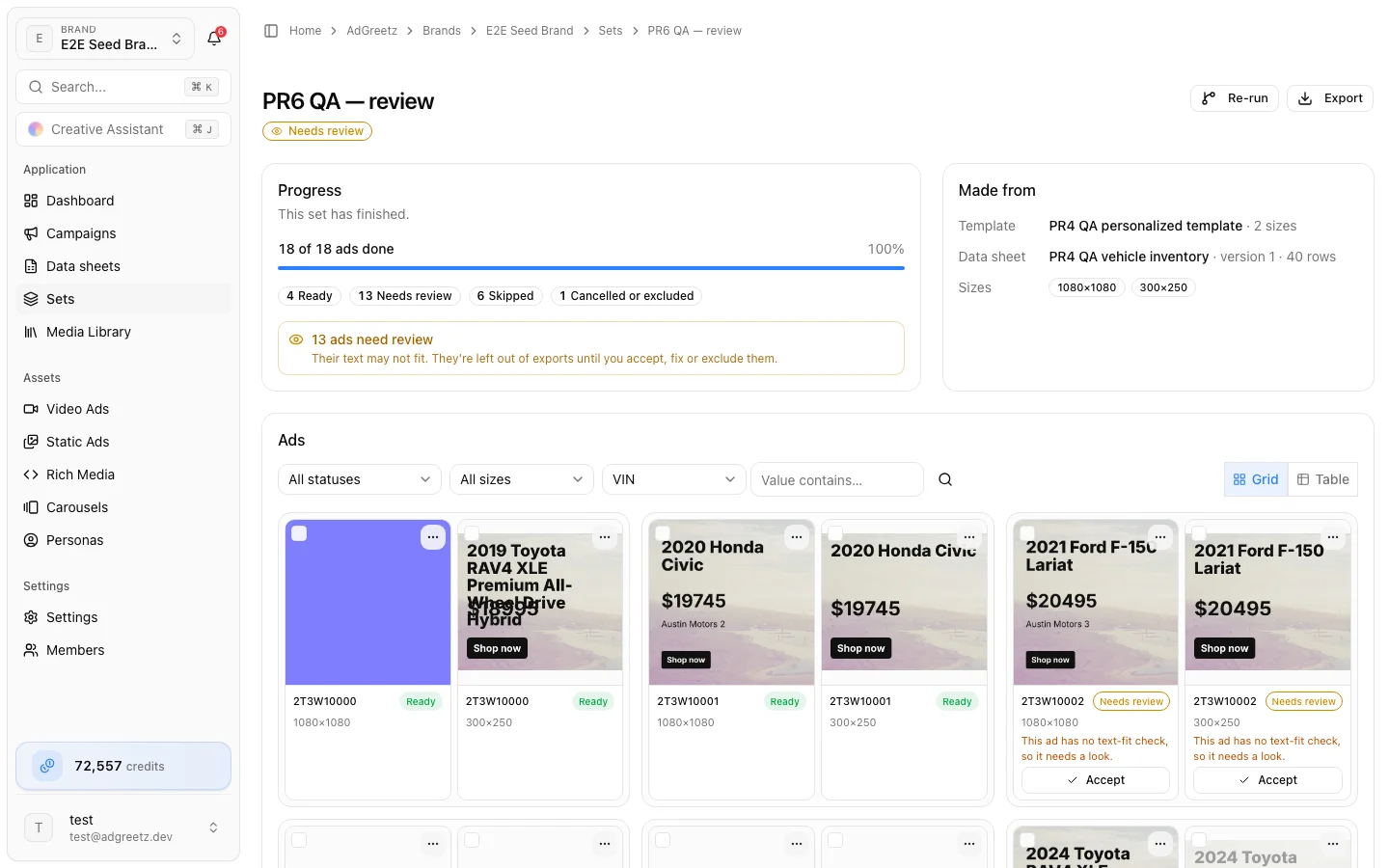
The Progress card shows 87 of 120 ads done with a bar, and counts for Ready, Needs review, Failed, Skipped, and Cancelled or excluded. It updates as ads finish. Made from shows the template, the data sheet version, and the sizes.
When a set pauses
A paused set shows This set is paused with the reason:
| Reason | What to do |
|---|---|
| You ran out of credits. Add credits, then resume. | Add credits, then choose Resume |
| Rendering stopped making progress. Resume to try again. | Choose Resume |
| A file this set was prepared with, such as an image, is no longer available. | There is no Resume — it would stop at the same file. Choose Cancel remaining, then Re-run: a re-run fetches the template's and the sheet's images again and makes a missing AI-made image again at no charge — the new image may look different. Unchanged ads are reused at no cost; ads that show a remade image render as usual |
| This set reached its approved amount… | There is no Resume. Choose Cancel remaining, then Re-run to get a new quote. Unchanged ads are reused at no cost |
Resume checks your credits again and continues where the set stopped. Finished ads are never redone.
Cancel remaining
Cancel remaining stops ads that have not rendered yet. Confirm with Cancel remaining, or choose Keep going. Ads already rendered stay in the set and are charged; ads not started are cancelled and never charged.
Retry failed ads
When a set finishes as Partly failed or Failed, choose Retry 3 failed ads. Only the failed ads render again. Each failed ad shows why it failed — for example This ad couldn't be rendered. Retry the failed ads to try again.
Browse ads in a grid or a table
Switch between Grid and Table above the ads. Your choice is remembered in this browser.
- Grid groups ads by row, with sizes side by side. Each tile's … menu holds that ad's actions.
- Table shows one line per sheet row: Row, Ads (that row's sizes), Status, and actions. The status shows the most serious problem first — failed before needs review — with its reason, and +2 more for the rest. Fix and Accept are buttons on the line.
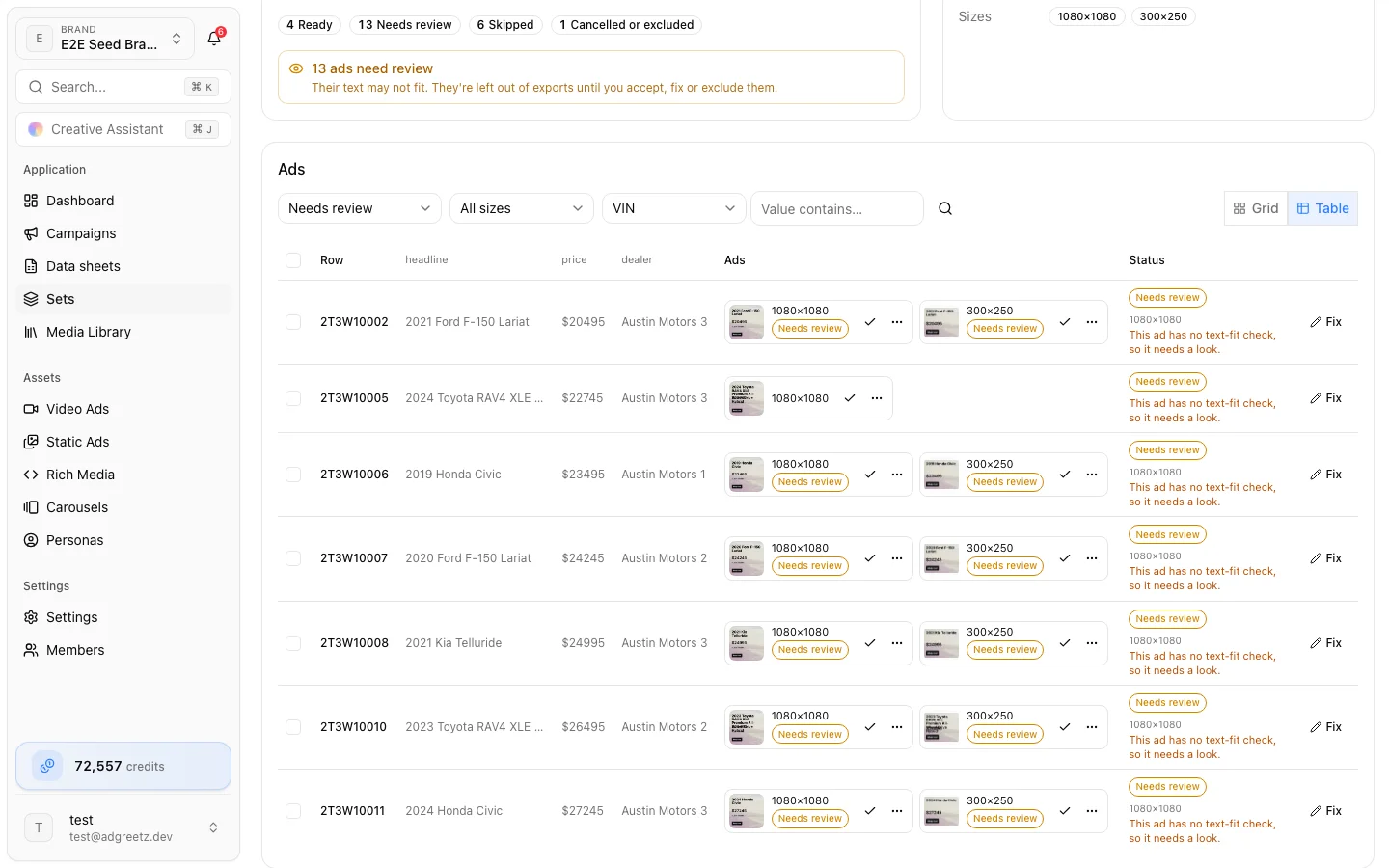
Narrow the ads with All statuses, All sizes, or a column filter (pick a column, type in Value contains…, then Apply filter). Clear filter removes it.
Select ads with their checkboxes — or a whole row, or the whole page in the table — to act on many at once: Accept, Exclude, Include again, Save to library, or Clear the selection.
Review ads that need a look
Text filled from the sheet shrinks to fit its box, down to a minimum size. When it still does not fit, or the fit cannot be checked, the ad is marked Needs review with the reason — for example "headline" doesn't fit its box, even at its smallest size.
In a rich media set, a row is marked Needs review when its value is longer than an element set to Flag for review holds — for example "price" may be too long for its box, so it was flagged instead of cut off. In a static set, text cut off with an ellipsis, as its fit allows, still ships. See Fit long values in their box.
Ads that need review are left out of exports unless you include them in the export dialog — see Export a set. To settle each one:
- Accept it as it is. It becomes Ready.
- Fix a value, such as a shorter headline, and re-run.
- Exclude it.
Exclude and include ads
Exclude takes a rendered or failed ad out of the set's results and exports. Include again puts back an excluded ad that had rendered. Exclusions carry over to re-runs.
Fix a value
- Open the ad's … menu and choose Fix a value — or choose Fix on the row in Table view.
- Pick the Value to change and type the New value:
- Text is used as it is, in every size of that row.
- An image takes a public https link to a JPEG, PNG, WebP, or GIF — or choose Upload an image to pin your own file.
- A link takes an
https,mailto, orteladdress.
- Choose Save fix.
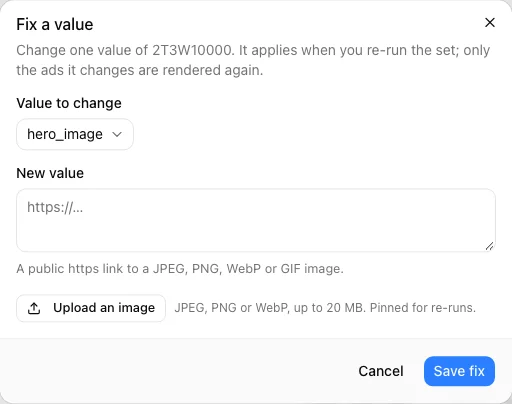
To change an AI value instead of replacing it, choose Regenerate in the ad's … menu. An AI image also takes instructions there, such as Move the car higher, keep the bottom clear for a generated image — see Regenerate a value.
A fix applies when you re-run the set. The page shows 2 rows have fixes waiting; remove a fix from that banner. Only the ads a fix changes render again.
Save to the library or edit a copy
From a ready ad's … menu:
- Open full size or Download the image.
- Save to library copies the ad into the brand Media Library. Saving the same ad twice keeps one copy.
- Edit a copy in the editor creates a new static ad from this ad and opens it in the layer editor. It also appears in Static Ads. The set is not changed.
Rich media bundles are exported instead — see Personalized rich media sets.
Adjust an ad's framing
When a product is cut off or off-center in one ad, reframe that ad alone — no re-run, no new set. It works the same in layered and rich media sets.
- Once the set has finished, open the ad's … menu and choose Adjust framing….
- The dialog shows the ad as it is now and, beside it, its image. If the ad has several images, pick one above the controls.
- Frame the image:
- Fill covers its box and crops the rest; Fit shows the whole image inside its box.
- Click or drag on the image to place the point that stays in view.
- Zoom moves in around that point.
- Reset puts the image back to how the template frames it.
- Choose Save and re-render. The button shows the cost: one render of this ad at its size's price, charged when it is ready and checked against your credits first.
The ad renders again in place, as it does after a regenerate; every other ad, and this ad's copy and layout, stay as they are. A reframed ad shows Framing adjusted under its tile. Setting an image back to a framing the ad already had costs nothing.
A framing belongs to the image it was made for. If the image changes later — a regenerated value, or a row with a new image in a re-run — the ad goes back to the template's framing, and the dialog says the old framing isn't used.
Some ads can't be reframed: an image needs a fixed size in the template, and a size that uses the row's image exactly as it is (charged nothing to render) says This size uses the image exactly as it is. If you shared the set for sign-off, its link shows the new framing once the ad has re-rendered.
Re-run with changes
Once a set has finished — whatever its final status — choose Re-run. When fixes are waiting, the button reads Re-run with 2 fixed rows.
If you edited the template or its saved mapping after the set ran, the set's page tells you before you start: Your template changed since this set ran. Re-running would re-render 40 of 120 ads (≈160 credits); unchanged ads are reused free. The count compares each ad as it would be made now with the ad the set already rendered, and the credits cover only the ads that render again plus any new AI values. It is an estimate: the re-run's review still quotes every ad — the most it can cost — because reuse is settled as each ad renders. The re-run also fetches the sheet's images again and re-checks how text fits, so an image that changed at its link, or an ad rendered before recent text-fit improvements, renders again and the final cost can be higher than the notice said. When the only change is how an image is framed (its focal point or zoom), the notice says so: you can adjust framing on individual ads instead of re-running the whole set.
A re-run is a new set with the same template, sheet version, rows, and sizes. It is prepared from the design and mapping as they are saved now — so edits you saved in the editor's Personalize with data panel apply too — plus your fixes. It opens its own review with a fresh quote:
- Ads that do not change reuse their earlier render and are not charged, so the quote is the most it can cost.
- Ads you excluded stay excluded. Choose Include them on the review to bring them back.
- Ads you reframed keep their framing while their image is the same, so they reuse their earlier render too.
Approve it as usual. The new set shows Re-run of …, and on a campaign it replaces the earlier set's card.
A re-run uses the sheet version the first set was made from. If the sheet has been replaced since and that version has been cleaned up, preparing fails with That version of the data sheet is no longer available. Start a new set from the editor's Review set instead.